Virtual Field Trips

Image

Mrs. Marino’s 4th grade class heads to NYC

Do you ever wish you could take your students and show them the real world? Are you low on funds? What teacher isn’t!  Last week while surfing through Pinterest I saw where @TechChef4U (follow her on Pinterest, Facebook, and Twitter) had pinned a blog about virtual field trips. What??? I was intrigued. It just so happened that we had just written a narrative on “My Best Field Trip”. Instantly, I thought why not take the students on a virtual field trip and then have them write a narrative about that. We can compare the two narratives, make a ThinkLink, make a Popplet, etc. Once again, this shows you the power of Twitter, Pinterest, etc. If I were not searching through other teachers’ ideas, I would have never thought of this! I digress. This truly was one of my favorite lessons that I’ve taught in eight years. I did not tell the kids that I would be taking them on a “trip”. I wanted everything to be a surprise. When they walked into my room that morning I told them to get their binder and a pencil and come sit in front of the SMART board. I already had my MacBook and the Apple TV ready to go. Beforehand, I printed out a sheet that had four empty squares on it for students to write down interesting facts that they learned. Once we were settled, I told the kids that we were going to NYC. Out of 65 kids only four students had ever traveled there, and one of those students was my son. The kids never questioned me on how we were going. They never said we can’t go to New York. That is the way kids are, though. Open-minded, carefree, excited for an adventure.  We started going through the slides. There were movies, aerial views of different parts of The Statue of Liberty, and a ton of information on how the Lady Liberty was formed and why. The kids seriously were in awe. They had a ton of great questions. They wrote their little hearts out on those four squares trying to fill in as many facts as possible. They were very engaged in the whole process. By the time the field trip was over, it was time to switch classes. When they came back to school the next day the students were still talking about the trip. They talked about how they told their parents that they went to NYC at school yesterday. They remembered facts and details. At this point we started working on our Popplets individually. The students turned their four squares of information into digital information to email to me. They love Popplet because they can change the box sizes, colors, locations, etc. They can personalize their work and save it easily. They are getting really good at exporting the information to me on their own by this point in the school year.  Making a Popplet is quick, easy, fun, and effective. Once all the Popplets were made we met together on my big rug. Then we started working on a ThingLink about what liberty means to us. I am always amazed at the students’ answers. They come up with some very thought provoking ideas. The great thing about ThingLink is that we can upload it to the school’s Facebook page. So, even though it is something the class created as a whole at school, every parent can still view it that night.  The third day of our project consisted of writing our narrative about the actual field trip. I was very surprised at how well students had retained the information. They knew there were 146 steps leading up to the crown. They knew that the foundation was made of granite and concrete. I truly believe that because the activity was interactive, engaging, and involved technology that students were more excited…that they wanted to learn and be involved in the activity. I love technology and everything that it allows me to do with my students. The possibilities are endless. I have been teaching for 8 years now, and this year I received the best Christmas present ever. One of my students bought me a Statue of Liberty bookmark. Now, that’s magical. I will keep it forever, and I will always remember the day that I took 65 4th graders to The Statue of Liberty.

CHECK OUT OUR THINGLINK …… http://www.thinglink.com/scene/469246669074989058

Virtual field trip link – http://www.nps.gov/stli/photosmultimedia/virtualtour.htm

Mobile Mania

Screen Shot 2013-12-11 at 7.46.31 PM

Mrs. Marino at Mobile Mania

People get tired of me talking about Twitter, but I can’t help it. It has changed the way I look at my career and has opened up endless possibilities for me.  I have met people I would have never met; I have gone places I would have never gone. I’ve seen lessons and ideas for my classroom that I would have never seen. My 4th graders Skyped with Canada last week for goodness sakes!  That’s major. My excitement for Twitter really grew last year when I went to iPadpalooza. (GO IF YOU CAN!) It was an amazing event that opened up my eyes to the potential of professional development. I had the chance to see people present that I was following on Twitter. They were just as amazing in person as they seemed on Twitter. Real teachers making a real difference in children’s lives. I mean @techninjatodd, @SAtechnoChic, @iPadSammy, @TechChef4U, and @mimg1225. Seriously! They inspired me. They gave me wonderful techniques and tools to take back to my class. I left there on fire and wanting more. When I returned home I was up late not able to sleep, searching through my Twitter feed and @CarrieRossTx mentioned something about an EdCamp. Well, I had no idea what this was. I asked a few questions, it seemed cool, so she helped me get signed up, I invited @NicotreSherri and off we went. We arrived at Region 6 to a ton of smiling faces. I can’t even mention them all, but they made us feel at home. And then the awesomeness of an EdCamp ensued. The plan is…there is no plan.Teachers sit around comfortably in a room chatting about what they want to learn. Did you get that? WHAT THEY WANT TO LEARN! EdCamps are tailored toward teachers!  Ideas are tossed around, people raise their hand if they can informally present on a topic, and then a schedule is made. The irony of it all is that teachers like schedules. They like to know what is going to happen. They want a plan.  So how does this chaotic, unplanned, unprepared, organic mess work so well? I don’t know. But it does. It was one of the best days of Professional Development I have ever attended. I went to the classes I wanted to go to. And if I attended a session and decided that it wasn’t for me. I just got up and found  another class. No one’s feelings are hurt. No one cares. Everyone just goes with the flow, and you learn SO much! It’s fun, it’s laid-back, it is AMAZING! We left there excited that day with new ideas to take back with us. And we wanted to learn more. I have attended so many great workshops that I would not have because of that very first EdCamp. Mobile Mania, Google Ninja Academy, etc.  @WISDtechguru and I even taught TechCamps at our own district this summer. That’s a whole other post. So, what does this all mean? If you are in a slump as a teacher (it happens) go to an EdCamp. Go to iPadpalooza. Go to anything Google. Learn something new that excites you because if you are excited, your students will be.  My next EdCamp that I am attending will be in April @EdCampHouston.  It’s going to be a wonderful event with a ton of motivated and excited teachers ready and willing to present. I can’t wait. Also, if you are from my neck of the woods (oh, yes I did just say that) @janamac is planning an EdCamp Region 5. When this happens…COME. Come and learn. Share and grow. Be awesome.

Writing Wonderland

Image

Mrs. Marino’s 4th Grade Class

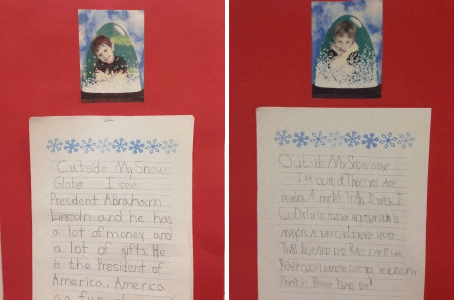
Isn’t December one of the best months to be a teacher? I love the atmosphere, the school being decorated, the Christmas magic. I love the kids telling me what their traditions are and seeing the light in their eyes. Christmas is magical. Teaching is magical. Every teacher knows there are a ton of Christmas themed units, assignments, projects, etc the weeks leading up to Christmas break. I love it all. Santa letters, Christmas acrostic poems, we are even writing Christmas plays this year. Tuesday I checked out the iPads with the intention of writing Christmas stories with the app called Write About This. May I back track?  Last year when we received our iPads there were so many cool apps for reading and math and science and grammar…but nothing for writing. I teach 4th grade WRITING, so I was a little bummed. I was fortunate to have the chance to attend iPadpalooza in Austin this summer (follow them on Twitter) where I sat in a session called Celebrity App Smack-Down. I can not remember for the life of me if it was @ipadsammy or @techchef4u that presented on Write About This, all I knew at the time is that I wanted to do a round-off flip flop down the middle of the auditorium. The wheels started turning in my mind, and I started writing down ways to utilize this app in my class. I seriously tell every teacher I meet about this app. It is hands down my favorite writing app. We literally use it every week. There are a ton of built in prompts with beautiful visuals. You can also take your own picture and make up your own prompt. My students LOVE that. Their favorite thing to do is to email their finished project to me and their parents. Back to this week…when the students came in my room I told them to go to Write About This and pick their Christmas picture. Some chose the Santa and some chose the snowman. Then I told them they had a choice.  Kids love choices. They could write a letter to Santa, an acrostic poem, or a creative writing story about Christmas. The kids did an awesome job. I loved their stories and their poems. It always tickles me to see their thoughts. Listen, if you are new to tech, scared of tech, don’t know what to do…start with this app. It is simple; but it is AWESOME. The possibilities are endless with this one, and it is beyond easy to navigate. Merry Christmas to everyone. I pray that you always remember why you began teaching….Let Your Light Shine!

Magical Multiplication

Image

Mrs. Reese’s 4th Grade Math

Are you new to technology and wondering where to start? QR codes can be used in any grade level and with any subject matter. QR codes are easy to design and even easier to scan. So, what is a QR code? QR stands for Quick Response. They are basically like a bar code. You can scan them, and in return they give you information. http://www.QRstuff.com is my favorite website to build my codes. It takes you through making a QR code step-by-step. My favorite scanner is i-nigma. On this particular day we were using QR codes for a multiplication review. Mrs. Reese is new to tech, but she is not scared to try! We decided that simple QR codes would be a great lesson for her and the students to start off with in math. We simply made 12 different QR codes. Each QR code was a double digit multiplication problem. The students scanned the codes, and then they worked the problems out on paper. Yes, I know, what’s the big deal? It is the same as a multiplication worksheet, right? The big deal is that students have a device in their hands, and the device makes them feel like they are in control. The device is fun. The kids are digital natives, and they can relate to these devices. They have been raised using these devices. They can use these devices better than most adults. Mrs. Reese who has been a teacher for 37 years watched her students diligently work their multiplication problems out and then beg for more problems. She said, and I quote, “I’m sold on these iPads. If they can make kids that excited about working multiplication problems, then I am sold.” Teachers are afraid of technology, but not if they have guidance. Some teachers (like myself) need step-by-step instructions and some can pick up things quicker. Either way, we need to provide each other with support and tips to help each other effectively implement technology into our 21st century classrooms. These students thrive on it. They love it. Technology is key in promoting a love of learning that will last a lifetime.

Thanksgiving ThingLinks

Image

Mrs. Marino’s 4th Grade Class

Are you new to technology and looking for something simple to start off with? I have the tool for you. It is an app called ThingLink. When I say it is simple, I mean SIMPLE! This lesson took all of twenty minutes, but the kids loved it. What is ThingLink? Well, basically it is what the name says. It is a picture of some”thing” with links to some”thing” else embedded in it.  If you look at the picture above there are about twenty different targets on it. If you are on the ThingLink and you touch the targets, something pops up. It can be a website, a picture, words, even a video. In this case it is simple text from my students saying what they are thankful for. We took my iPad down to the Pre-K hall and took a picture of their precious turkey that they have worked so hard on. Good job, Pre-K! We then went into my ThingLink app and chose the turkey picture. When you tap on the picture the option comes up to add text or add media. You choose which one you want. We chose text. Each student told me one thing that they were thankful for. We all listened and commented on each other’s responses. It was a great time of reflection for the kids and myself. I always love to hear what they come up with. When we were finished we passed the iPad around and all had the chance to press the targets and see whose popped up. The great thing about this project is that we then could upload it to the school’s Facebook page. I told my students to make sure they showed their parents their Techy Turkey that night. The kids love when they get to show their parents things that they have created as a whole. Without technology, this would be almost impossible. So what is Mrs. Marino thankful for this year?  The ability to connect with other educators, the ability to teach my students beyond the four walls of our classroom, and the chance to share it all with you.

Making lessons come alive with YouTube & Aurasma

Image

Do you want to hear about something amazing? This summer when I started researching Aurasma I came across one of Erin Klein’s (follow her on Twitter) blog posts on http://www.kleinspiration.com that talked about how she embedded  a YouTube video into a book for her kids. WHHHAAATTT??? I know! I could not believe it. I started thinking about the different possibilities that could happen with these two great tools. There are so many great videos on YouTube that I show my students already. Nouns, commas, verbs, everything. These videos are innovative, funny and they definitely catch my students’ attention. Up until this point, we have viewed the videos as a class. With Aurasma, I can now embed videos into books around my classroom. Now when students have a device, they can hover over these marked pages and view supplemental videos that will enhance skills that we have already targeted that week in class. Because kids are holding the device in their hands and watching a catchy video…learning is fun, learning is interactive, learning is something that they want to do. This is my goal. I want to foster a love for learning in my students that will last a lifetime. How can you do this? Sounds hard? It’s not; I promise. This is what I did:

Hopefully, you have read my previous posts on Aurasma and the power it holds for creating unforgettable lessons in your classroom. If not, please go back and read them, or this may be a little confusing. Here we go. My son loves anything to do with the Titantic. His favorite book is called Headlines. We found a Kid’s National Geographic video on YouTube about the Titanic. We converted the video to an MP4 and used it as the overlay for the aura we created in the Aurasma Studio. Now, when you hover over the picture of the Titanic in his book, the video pops up. So the kids are reading about the Titanic, seeing pictures of the Titanic, and then viewing a video about the Titanic all within one book. Talk about differentiation. Talk about targeting all types of learners. This sounds complicated, but trust me it’s not! If I can figure it out, anyone can. Did I mention that my husband has multiple degrees and most are in computers. He is extremely smart, and for the past 11 years I have depended on him to do anything “technology related” for me. I almost asked him to convert the video for me, but I wanted to prove to myself that this was easy enough for anyone to do. Guess what, I did it by myself. I converted it, embedded it, it worked, and my son thought I was a ROCK Star mom. This process took less than an hour. I would say that less than an hour of your time is nothing compared to the impactful lessons that you are creating for your students. Try it out, and if you need help I am a tweet or e-mail away. Be awesome!

The Aurasma Studio has step by step tutorials for you on how to build an Aura.  It’s simple.  To convert the YouTube video to a MP4, I used a convertor that I found on Google.  

Perfect Presentations with Popplet

Image

Mrs. Marino’s 4th Grade Class

Do you get tired of the same ‘ol graphic organizers? Me, too!  hen I heard about Popplet last April, I was instantly hooked.  The wheels in my head started spinning ninety miles to nothing. Typical. Popplet has endless possibilities for any subject and grade level. That’s why I love it. It is so versatile. No matter what I am teaching, we can make a Popplet to brainstorm or to assess what we’ve learned so far. I have already used Popplet several times this year. Sometimes I use it with my iPad and Apple TV, and we all brainstorm together. Other times the kids are making their own Popplets at their desk. Today, though, something magical happened. My students’ assignment was to make a Popplet using the homophones for “there”. When finished, THEY ASKED to go even further. They added on to the other side of their homophone box (all their idea) and started to do the homophones for “to”. Then they branched off even further and added even more. The part that was amazing to me was when they started helping each other. I like to “steal” the screen with their iPads and project what they are working on. When I put one little girl’s Popplet up on the SMART board the other students noticed that she color-coded her homophones. They instantly wanted to do the same. So, two little girls popped out of their seats and started circulating around the class helping other students. It was a good moment. Plus, it was super cute. The other kids listened, too. They didn’t teach them how to do long division or how to diagram a sentence. They simply taught them a few design techniques for this app we call Popplet. But they used their own voices, and in that moment they were the teachers. And I am beyond proud. I seriously love my job.

The picture below shows a Popplet created for older students. Also, note that on the right side you have the option to e-mail your Popplet straight to your teacher and parents.

Image

Let it Go

Let it Go

Day 4 of iPad camp and this is what I learned – or rather relearned. I was beyond excited because I had a really cool lesson planned. I had planned out exactly what I wanted the kids to do as we worked on creating movies. Thirty minutes in and that all went out the door. I introduced TouchCast first, which has some pretty cool features that you are able to add to the video that you are making. It takes a bit to get used to navigating this tool, or so I thought, so I told the kids to play around with it before we started our project. The really cool project that I planned out. The one that I was super excited for. Because I knew the results would be awesome. Well, as I walked around the room I realized that these kids did not need me to plan out their projects for them. They took initiative and came up with their own ideas. Some really good ideas. I was torn. I really wanted them to do what I had planned, but the creativity was flowing. So, I let it go. I struggled…but I did it. I let them keep going with what they were doing. I am so glad that I did. All the projects were different. They were creative, well thought out, and one of a kind.I was so proud of them. I am positive that they turned out much better than what I had planned for them. Do I think we should never have a plan? No. I just think that as teachers we need to learn to adjust, swerve, roll with the punches. When something comes up that isn’t what we planned, especially with technology, don’t get flustered. Just go with the flow.

ThingLink Celebration Project

scroll over the red bullets on the above image

Today at iPad camp our main focus was to create attention grabbing graphics. Say that three times fast. We used several different apps and created many different visuals throughout the day; however, I want to focus on our ThingLink Celebration Project. If you would like to check out all the apps and tools we used today please check out my website. Our ThingLink Celebration Project focused on The 4th of July. We started off by watching a short YouTube video that you can check out here. Before the students started watching the video I passed out the following really cute graphic organizer.

Screen Shot 2015-06-29 at 11.20.48 AM

I found this graphic organizer on www.sharemylesson.com, and it was free. The students took notes while watching the YouTube video. We then went to Google Junior (a safe search site for children) and looked for our favorite 4th of July image. I showed students how to save their image to the camera roll. From there we opened our ThingLink app where we added our image. The students then took their notes and made “targets” for each one. The targets are the little red bullets that you see on the image at the top of this page. These targets are interactive. You can add text, YouTube, links, & more. This lesson was a lot of fun, and it was so easy to teach. You could do this at any grade level and with any content. Get creative, and don’t be scared. Your students will pick up how to navigate the iPad faster than you can read this blog. When we finished we took our notes and put them into the Word Clouds app, and here is what that looked like:

Screen Shot 2015-06-29 at 11.18.26 AM

S.A.M.R. – What’s it all about?

S.A.M.RThis week several faculty members from WISD attended iPadpalooza, which is always my favorite “techy” conference. My awesome friend, Sherri Nicotre, attended a class on the S.A.M.R. Model and sent me some pretty good notes. Thank you, Sherri! So, what the heck is S.A.M.R.? We hear a lot about it in our district because we are 1:1. Kathy Schrock’s definition is pretty good: “SAMR is a model designed to help educators infuse technology into teaching and learning. Developed by Dr. Ruben Puentedura, the  model supports and enables teachers to design, develop, and infuse digital learning experiences that utilize technology. The goal is  to transform learning experiences so they result in higher levels of achievement for students.” Check out her website at: http://www.schrockguide.net/. Here is a simple visual that explains the S.A.M.R. model in greater detail.

Screen Shot 2015-06-27 at 9.59.13 AM

Image the creation of Dr. Ruben Puentedura, Ph.D. http://www.hippasus.com/rrpweblog/

I like to say that this model is the “Bloom’s” for teachers that are using technology. How can we think outside of the box to create lessons, and how can we help our students reach the very top level? We have to model this type of thinking for them, and the S.A.M.R. model will help guide you in the right direction. Sherri took the following notes, which aligns different apps with the different levels of S.A.M.R. If you are overwhelmed by S.A.M.R. or just do not know where to start – the following will be very helpful. Again, thanks to Sherri Nicotre for sending me this information.

Substitution: Popplet, Doodle Buddy, Baiboard, iBooks, Photo Collage, & Symbaloo

Augmentation: Pages, Google Search, Haiku Deck, Chatter Pix, & Morpho

Modification: Thinglink, 30 hands, QR Code readers, Skitch, Flipboard, & Dragon Dictation

Redefinition:  Nearpod, iMovie, Infinite Monkeys, Book Creator, Explain Everything, & Sock Puppets.