Tech Champs Progress

Screen Shot 2016-06-17 at 4.01.41 PM

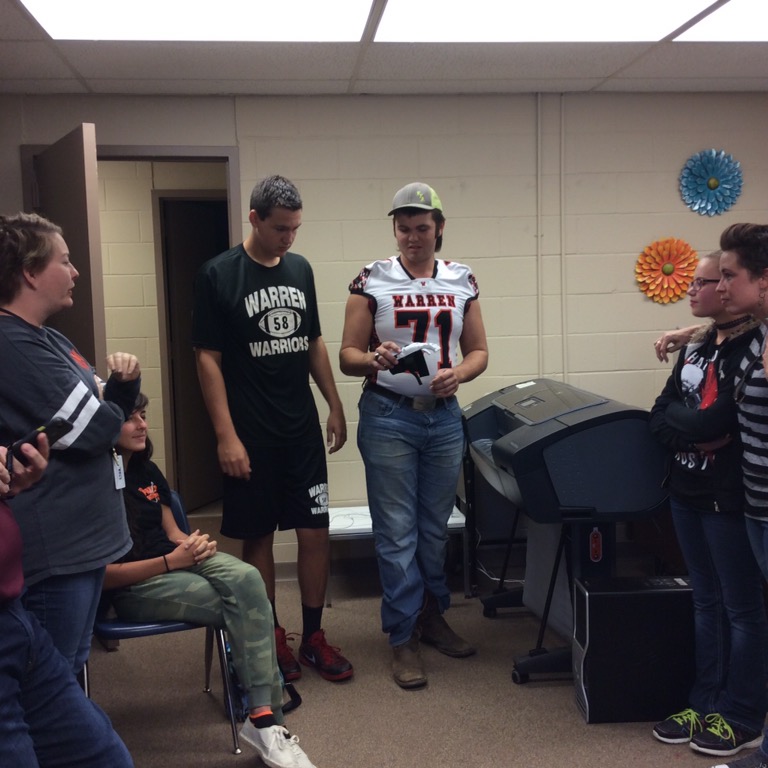
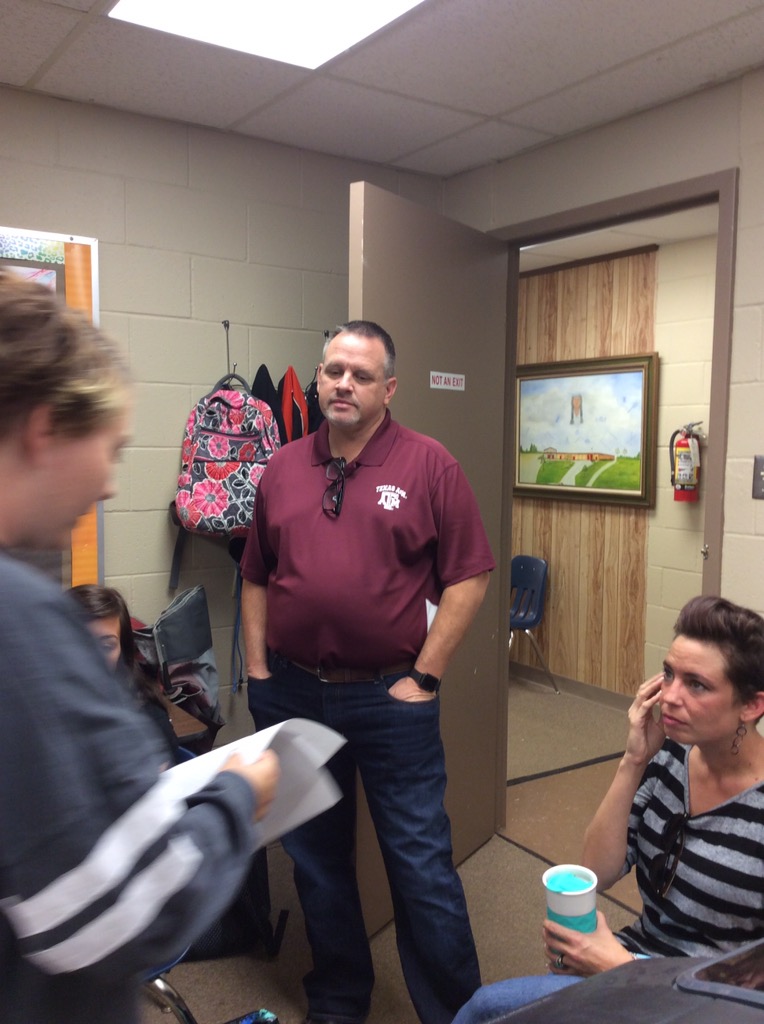
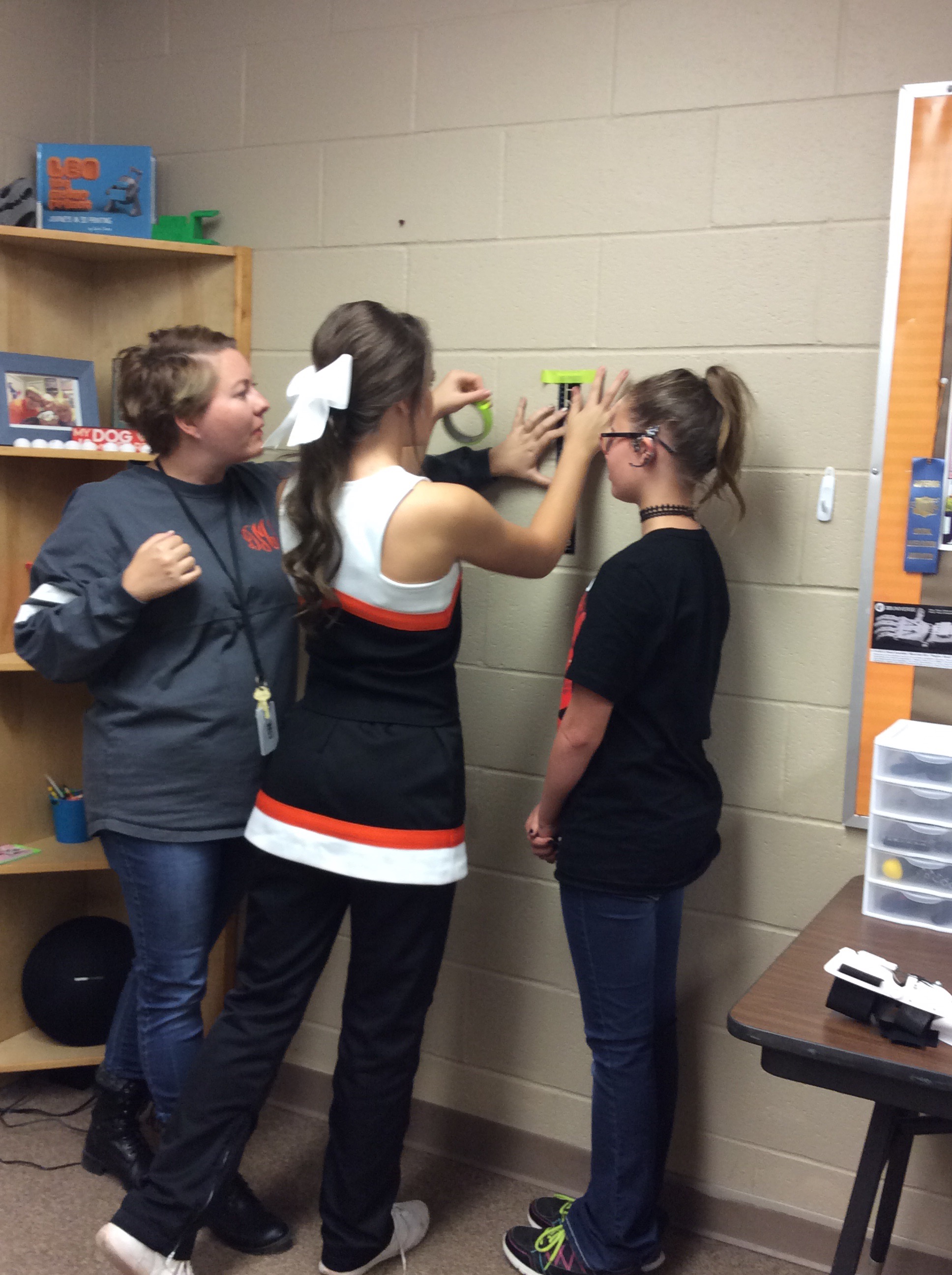
The Warren ISD Tech Champs program has taken off quicker than I imagined. I quickly realized that this was going to be much bigger than just integrating technology seamlessly into classrooms. This is about becoming a better teacher in every aspect. With that being said I know how important it is to reflect, and I am going to do just that. I plan on tracking our progress throughout the whole year, so we will be able to look back next year and make this even bigger. I have a huge support system. My superintendent, Brad McEachern, and my Network Administrator, Cherie Stanley, are constantly pushing me, questioning me, giving me feedback, helping me brainstorm, and even have a few challenges lined up for my Tech Champs. So far we have had two challenges. The ladies will also be attending technology conferences throughout the summer.

Challenge 1 was pretty difficult. They had to assemble Google Cardboard, experiment with it, and then write a lesson plan for their classroom. They all did amazing. They thought of ideas that absolutely blew my mind. Of course you can go to my website and check out their ideas under my Tech Champ tab. The second challenge was in two parts. They first had to write down their small and large technology goals for the year. Cherie and I sat down together to go over them. We then brainstormed ways on how to make these goals work for each teacher. We thought of different platforms that may work for the various things that they want to do next year. I was extremely impressed with their technology goals. I was pretty much in “Proud Momma” mode. The second part of challenge two is a year long project that they will be working on. They have a Google Doc with one date a week for the next year where they will copy and paste a link to an article that they found relevant or inspirational to them (or their class). I think it is so important to grow in your profession. Let’s be honest – I am pretty much a fanatic about being in a constant state of research and how to make things better for teachers and students. I love digging for new ideas. I love seeing what other people are doing. I hope that this will give my Tech Champs inspiration and fresh ideas for their class. Get this – the articles can be about anything. This isn’t just about technology. It can be about classroom management, positivity, curriculum, etc. Anything that makes us better – makes our students better. I am actually going to be sending out challenge three very soon. It will be easy! Half of the challenge is from me and half of the challenge is from our superintendent. Stay tuned as my Tech Champs do amazing things throughout this year.


How to Conference

Screen Shot 2016-06-15 at 2.51.21 PM

Warren ISD Faculty attend TCEA Tots

Conferences are an absolute must for growing and recharging; however, they can be extremely overwhelming if you are not careful. The following conference “rules” will help you navigate through your sessions smoothly and have a blast along the way.

  1. Take a friend with you – Everything’s better with a friend. This #1 conference rule will fall into many of the categories below as well.
  2. Plan ahead – Seriously. Download the conference’s app and assess what classes you think will be relevant to you. Refer back to rule #1. Choose some classes to go to with your friend. Then divide and conquer on others.
  3. Start a Google Doc – Take notes! Take pictures. Share the Google Doc with your friend from rule #1. This way you have notes from the sessions that you missed.
  4. Don’t waste time – If you are sitting in a class and realize it is not what you wanted – get up and leave. Find a quiet place to sit and go over notes from your previous class. Life is too short not to be learning relevant information at your conference. 🙂
  5. Utilize your Twitter account – Even if you do not tweet on a regular basis, you need to be actively tweeting during a conference. You will be able to see updates, you will be able to get great take aways from other attendees, and you will have a live stream of all the resources that are being shared out. Plus, the power of networking in education is amazing. You will meet other “birds of a feather” and be able to learn, share, and grow with them.
  6. Take a few sessions off – That’s right. I am telling you to “skip class”. I learned this after my first TCEA conference where I tried to squeeze in so much that I left exhausted and overwhelmed. You need to plan a time where you go and recharge – yourself and your devices. Sit and reflect. Sit and talk with your friend from rule #1 on what you have really loved so far. Bounce ideas off of each other. This is one of the most important aspects of growing as an educator.
  7. Make a priority list – Thanks Crystal Fea for this idea. What have you learned at this conference that will be most beneficial and relevant to your students? I suggest starting with just implementing two things to begin with. If those two things go smoothly, then you will be able to add in others as the year goes. If you bomb those two things – OH WELL!. You tried. Move on. Reassess and do not get discouraged. Failing doesn’t make you a failure. It makes you brave.
  8. Prepare to share! Seriously. Do not keep all the neat stuff you learned to yourself. Share it with your co-workers so their classes and students are impacted positively as well.
  9. Keep learning. Plan to attend more conferences. If your school cannot afford to pay for you to go, then it is time to get brave and present. When you present you go for free! Have the mantra #CantStopWontStop – because after all #KidsDeserveIt.

Screen Shot 2016-06-14 at 10.39.27 AM

Google Cardboard Lesson – #TechChamps

Screen Shot 2016-06-06 at 12.31.12 PM.png

Mrs. Fea’s Google Cardboard Lesson Ideas

I introduced the Google Cardboard to my students this week. It was amazing how quick it captured their interest. Who knew a piece of cardboard and a phone could be so exciting. I made my way around the room and let them view one of the ocean scenes on the app. I started trying to think of ways that I could use this in my room next year.  One of the most important skills we work on early in the year is sight word recognition. It’s hard to get students excited about practicing their sight words independently. I used the cardboard camera app to video my students holding sight word cards. I then let students  view the video. They immediately started shouting out the sight words with excitement and of course they loved seeing themselves on video.  Their task was to read each word and write down five words to use in a sentence. I could have had them do a similar task with an ordinary video,but the 360 degree view with the Google Cardboard creates more interest. The students are able to pan back and forth for as long as they need. Plus they think this simple little gadget is awesome! I think this would be a great activity to start the year with. I can’t wait to work on more ideas this summer.

Writing Station: Students will view a video  and then they will have a follow up writing activity. At the beginning of the year they will write simple sentences using sight words. The writing expectations will increase throughout the year. Eventually I would like the students to write stories related to the videos. I would like to put the video link on qr codes so they are surprised by their video. Maybe their video will determine the setting for their story. I am still trying to get my thought together on this idea.

Sight Words: I am going to make a video using the cardboard camera app with sight words and students will then view and read and write the words they find. They could even find words and put them in ABC order.

Math: I want to try the bowling VR I am thinking my students can write number sentences while playing this game.I would like for my students to make their own VR video and then create math word problems to go with them. This would be great especially for 3d figures.


Google Cardboard – #TechChamps

Screen Shot 2016-06-03 at 7.42.09 PM

Mrs. Foret’s Tech Mission #1

Choosing a way to incorporate my Google Cardboard into my classroom for my first mission proved to be more difficult than I thought it would be. First, I started by letting my students each come to my desk. I put a demo on the cardboard and let each of the watch just to see how they reacted to it. They LOVED IT! Each of them begs me daily to watch something. For my actual mission, I knew it would be difficult to have each child use the cardboard and do something with it. After all, first graders are not the most patient little souls. I chose two students who I could trust to take my iPhone, Cardboard and iPad. Jaxson and Olivia were perfect for the job. I wanted them to experience something really neat so I decided I would send them on virtual field trip. I ended  up using the Cardboard “Demo” App. I demonstrated how to use the Cardboard, and showed them how to use the magnet on the side to switch between famous cities.

There were several places to choose from including Tokyo, Venice, New York, Rome, and Paris. Olivia and Jaxson chose to tour Paris. The tour started at the Eiffel Tower. From there they were able to use the magnet on the side and Google’s Street View to navigate their way around the streets and area surrounding the Eiffel Tower. Once they both experienced the “tour”, I wanted them to create a way to show our class what they saw and learned. Together, we watched a video about the Eiffel Tower, how it was formed, and some neat characteristics of it. After learning a little and making connections from prior knowledge, we decided that they would create a book. We have used the app “Book Creator” in my room a few times this year so they were moderately familiar with it. I helped them get started and they completed the rest of the book. Once they were done, they were able to pull a photo of the Eiffel Tower up on the Smartboard and present their book to their classmates.

I absolutely loved doing this with my class. I have had several children approach me and ask if they could make a team and create their own book and go on a virtual field trip. I can honestly say that every child in my classroom was engaged and excited to learn. Jaxson said, “Using Google Cardboard made it feel like I was really there.” He also told me he felt like he was walking with the people on the street. Olivia said, “ It was awesome,” and she felt like she was really there. I am looking forward to incorporating my Google Cardboard into the classroom in the future.


Google Cardboard -#TechChamps

Google Cardboard and Perspective Drawing

Screen Shot 2016-06-02 at 4.13.58 PM

This lesson was written by our junior high art teacher who is amazing. Please check it out!

In the past I have taught one, two, and three point perspective drawing. One point perspective is a much easier concept to grasp. Plenty of real life examples can be demonstrated right inside the classroom or walking around the school building. With google cardboard the students can watch this video: https://www.youtube.com/watch?v=f0-89v4Fk-M and be able to visualize what the 3-D version of 2 point, and 3 point perspective would look like. Then we could get into the steps of drawing in two point perspective…

Screen Shot 2016-06-02 at 4.06.32 PM

(Show drawing demo and examples and have students create their own city view)

Demonstrate knowledge of basic vocabulary by labeling photographs:

Screen Shot 2016-06-02 at 4.07.26 PM

Diagonal

Vertical

Horizontal

Horizon Line

Vanishing Point

Parallel

Depth

Height

Perpendicular

Perspective

Recede

Screen Shot 2016-06-02 at 4.08.12 PM

Screen Shot 2016-06-02 at 4.08.57 PM


Follow up with another google cardboard view of New York’s Times Square https://www.youtube.com/watch?v=a-gQK9V1zrU


A brief demo and student drawing of 3 point perspective:

Screen Shot 2016-06-02 at 4.09.36 PM

Screen Shot 2016-06-02 at 4.10.17 PM


And a few real life examples for the student to demonstrate knowledge of vocabulary and basic steps.

Screen Shot 2016-06-02 at 4.12.00 PM


I am also on the waiting list for Google Expeditions… a brief description of the program from their website:

https://www.google.com/edu/expeditions/


THE EXPEDITIONS PIONEER PROGRAM

Expeditions teams will visit selected schools around the world, including the United States, Australia, New Zealand, the United Kingdom, Brazil, Canada, Singapore, Denmark, Mexico, Ireland and Northern Ireland. Each team will bring a complete Expeditions kit with everything the teachers need to take their students on journeys anywhere. The team will show teachers how Expeditions works and help set it up before class.

WHAT ARE EXPEDITIONS?

Expeditions is a virtual reality platform built for the classroom. We worked with teachers and content partners from around the world to create more than 150 engaging journeys – making it easy to immerse students in entirely new experiences.

Expeditions are guided tours of places schools buses can’t go. They are comprised of virtual reality panoramas and are led by a guide or teacher.

Using a tablet, teachers can guide up to 50 students wearing virtual reality viewers.

Teachers can guide their class and point out highlights while referring to editable notes.

Google Cardboard – #TechChamps


This post was written by WISD’s culinary teacher and head volleyball coach. I am really excited to see how she is going to utilize technology in her classes this year. Please read her thoughts and give us feedback. We are looking for ways to use Google Cardboard in the culinary classes.Screen Shot 2016-06-02 at 8.34.11 AM

Google Cardboard ideas- Michelle Weichert

 There are lots of things for science

Rollercoaster (Physics)

Jurassic (Biology)

Sea World (Biology)

Gravity Pull (Physics)

Discovery VR (Science in general)

Fish Schooling (Biology)

National Geographic Wildlife (Biology)

View Master – Space (Astronomy)

VR Safari (Biology)

Molecule VR (Microbiology, Chemistry)

Chemistry VR (Chemistry)

Cardio VR (Athletics, Anatomy)

5d Planner (Interior Design)

Driving simulators

Public Speaking (english)

Virtual tours (History)

Several different locations, Paris, London, etc

Earth tours

I did not find a lot on cooking.  It would be a GREAT supplemental to lessons as this technology grows, and apps come on board.  The fact that it’s cheap, I would be willing to buy a class set.  Many of the apps are free, but are limited, but with anything new, kids would love it!  

Strengths

  • Great at keeping kids occupied when you have down time
  • Cheap, free apps
  • Cardboard is relatively cheap
  • New technology, very lifelike.

Weaknesses

  • Kids may not have phones
  • Rollercoaster is NOT FUN lololol
  • Still pretty new, not a lot of educational apps
  • Number of google cardboards available
  • Durability, oil stains from faces, sanitary issue

Questions

  • Does it work with any phone?
  • Will the district buy this?

I’m not sure HOW I would integrate it into classes that I teach, but I can see (no pun intended) how it can be very useful to other subjects.  I feel that older kids would find fun in working with some virtual reality things, and can really supplement lessons.  (For example, biology studying sea life, can see schools of fish, competitions to identify species of fish, see animals and sea life they may have never seen before)

It could be used as a reward, as there are many games available to use.  It is very lifelike, which really is the point of virtual reality.

Google Cardboard – Abby Paben

Screen Shot 2016-05-27 at 8.13.44 PM.png

Mrs. Abby Paben – WJH Tech Champion 2016-2017

Screen Shot 2016-05-27 at 8.16.03 PM

Overview & Purpose

The purpose of this lesson is to engage students while utilizing technology to describe their surroundings in vivid detail. This, in turn, will help students develop more effective sentences in their writing.

Education Standards

  1. Students will use a variety of complete sentences to convey their message clearly to the reader.

Objectives

  1. Students will lift off to outer space and then recreate the experience in detail through their writing.
  2. Students will write an expository essay detailing the event as it happened.

Materials Needed

  1. Google Cardboard
  2. LiftOff VR App
  3. Notebook Paper/STAAR Lined Paper
  4. Writing Utensils

Verification

Steps to check for student understanding.

  1. Monitor students as they journey off into their virtual reality.
  2. Ask students questions once their adventure is complete to trigger certain details that stuck out to them on their experience.

Activity

Describe activity that will reinforce the lesson.

Students will brainstorm, draft, and write a final expository essay detailing the journey they took through LiftOff VR. Students will spend a day reading their essays to the class to see if we can recreate the adventure through our words.

Tech Champions- The Unveiling

Congratulations

Today I officially announced all of my Tech Champions for the 2016-2017 school year. The WISD Tech Champion program will focus on integrating technology seamlessly into classrooms to enhance student learning. I presented each teacher with a surprise right off, which happens to be their first challenge. They were gifted tape and Google Cardboard. They have to figure out how to put it together on their own (not easy) and then come up with a plan to use it in their classroom. In true teacher fashion I assigned them a due date. On May 27th be looking for some pretty cool ideas on how to use this tool in your classroom. How do I know that the ideas will be awesome? My Tech Champions have already started messaging me ways to incorporate Google Cardboard into their class. Let me say, I may just go back to school and be in their classroom. If anyone else is curious about Google Cardboard please reach out to any of my Tech Champions!!!

Congratulations Crystal Fea, Michelle Weichert, Natalee Foret, Sara Moore, Abby Paben & Kristen Elliott. I know that you will do great things.


Sample Lesson – 1st Grade Reading

IMG_0433 (1)

Mrs. Fea, 1st grade teacher at Fred Elementary, sent me this audio book that one of her students created. This is such a great idea for the student creating the book because they are recalling and using skills that they have learned to help others. This is also wonderful for the student listening because hearing other people model reading and fluency is an incremental building block for new readers. Another aspect that I love about this is the ease in which the 1st grader used technology to curate a learning tool that other children can easily use to help them become successful readers. Read the short blurb sent by Mrs. Fea to see what they did:

“I am so excited to share this audio book that one of my 1st graders created today. I wanted my students to create audio books to share with kindergartners. My students were only allowed to create a book if they could read the book fluently. Getting them to reread for fluency can sometimes be a struggle, but today they worked harder than ever.  They were so eager to use this new app.  I introduced the app Puppet Edu today and students were able to use it with ease.  I used QRstuff to create the QR code.  I can’t wait to have students make more audio books and use this app in new ways.”

Sample Lesson – JH Bell Warmer

flubaroo_logo
This is the bell warmer that Connie Schroeder does with her reading students three days a week.You can modify this for your classroom. It can be used for any grade level and any content. Here is the explanation that Mrs. Schroeder sent me:
“I do my bell warmer in Google Forms. I pull up the form and make it, usually in multiple choice format, but I have been known to do a short answer. The only draw back to Google Forms, in my opinion, is that I cannot format the font or bold or underline. I then make a short-cut link  for it by clicking on send in my form.  I can copy it from there. Next I go into Google Classroom, and I make a draft. I put this in my announcements, and I label it however I want. Then I just click on the attach link button, paste it in, click add, and voila -there it is. Once I click on add I can then X out of it and move on to my next class, which saves it as a draft. The reason I do this is because I want to use it as a first of class activity. At the beginning of each class, I go back to that draft and click on it. This pulls up the draft, so I can then click post. The students come in, they log into Google Classroom, and they click on the link. This directs them straight to the form. They fill it out and click submit. At the end of the day when I know everyone is finished, I make an answer key by clicking on the sheet myself and answering the questions. Then, I go back into edit mode and click on responses. First, I turn off responses by clicking on the no more responses button. From there I just click on the green create spreadsheet button on the top right. Next, I  click the add on, Flubaroo. I give Flubaroo access to my spreadsheet. Last I go through my Flubaroo information so that it will grade the assignment for me, and I’m finished. My questions are usually only about 5 questions each, so I take the grade for each, I add them up, then I average them out for a weekly daily grade.”